Most business owners I speak to are running Google Analytics on their website and managing a Google Business Profile — but treating them as two completely separate things. That’s a mistake I’ve seen cost local businesses months of wasted ad spend and missed ranking opportunities.
When you connect Google Analytics to your Business Profile in GA4, you get a single dashboard that shows how your local Google presence — your Maps listing, your call button, your directions requests — actually drives real website traffic and conversions. This guide walks you through exactly how to set it up, what data you’ll unlock, and why it matters so much for local SEO performance in 2026.
Why This Integration Changes Everything for Local Businesses
Here’s what most people don’t realise: your Google Business Profile (GBP) is not just a listing. It is an active traffic source. People click ‘Visit Website,’ ask for directions, call your number, and send messages — all without ever landing on your website first.
Before this integration existed in GA4, all of that activity was invisible in your analytics. You could see website sessions, but you couldn’t connect the dots between a Maps impression and an actual visit. Now you can.
Linking your Google Analytics property to your Business Profile brings key metrics from your listing directly into GA4, offering a more complete view of the customer journey and the impact of your local presence. For local SEO, this is a game-changer.
What You Actually Get After Linking — The 6 GBP Metrics
Once connected, a dedicated ‘Google Business Profile’ collection appears in your GA4 reports. Here are the six metrics it tracks:
- Website Clicks: How many people visited your site from your GBP listing
- Calls: Phone calls made directly from your Business Profile
- Directions: Users who asked for directions to your location
- Messages: Messages sent through your Business Profile
- Bookings: Reservations made via your profile
- Menus: Menu views — relevant for restaurants and cafés
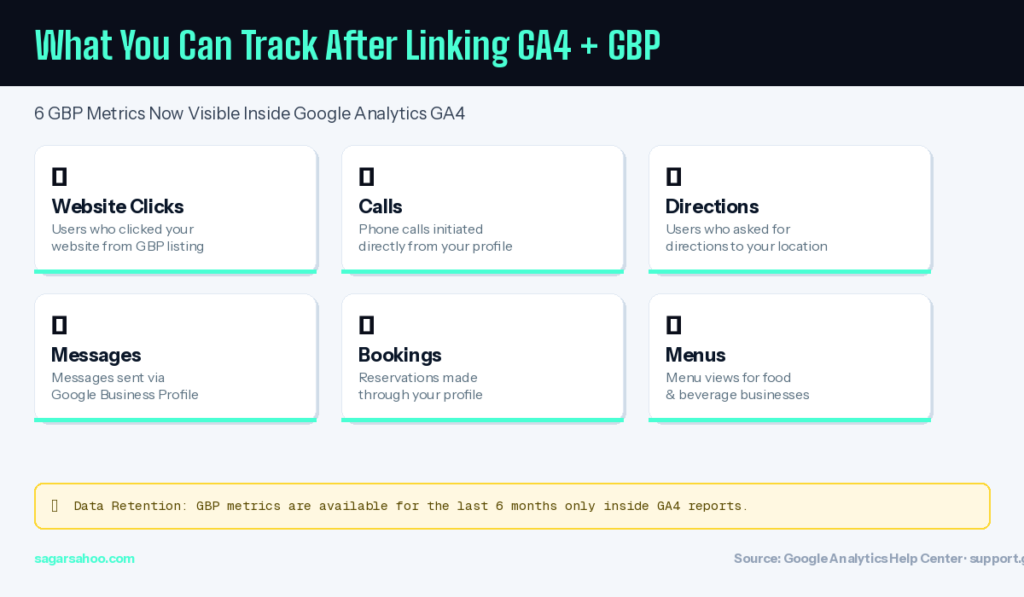
Important: GBP metrics are only available for the last 6 months inside GA4 reports. Set up the integration as early as possible so you don’t lose historical data.
Prerequisites — What You Need Before You Start
You need two things in place before linking:
- Editor or Administrator role on the Google Analytics property you want to link.
- Owner or Manager permission on the Google Business Profile(s) you want to connect.
If you manage multiple locations — say you run a chain of dental clinics or retail stores — a single GA4 property can be linked to multiple Business Profiles. Metrics will show as aggregated totals across all linked profiles.
Step-by-Step: How to Connect GA4 to Google Business Profile
This takes under 5 minutes if your permissions are in place.
Step 1 — Open Google Analytics Admin – Go to analytics.google.com and click the Admin gear icon (bottom-left corner).
Step 2 — Find ‘Google Business Profile Links’ — Under the Product Links section in Admin, click Google Business Profile links.
Step 3 — Click ‘Link’ — A setup wizard will launch. Click the blue Link button to begin.
Step 4 — Select Your Business Profile(s) — GA4 will show you all Business Profiles where you have Owner or Manager access. Select the one(s) you want to link.
Step 5 — Review and Confirm — Review the data sharing information and confirm the link. The integration becomes active immediately.
Step 6 — Check Your New Reports — Navigate to Reports inside GA4. A dedicated ‘Google Business Profile’ collection will now appear — visible only when a link exists.
Real Case Study: How a Mumbai Bakery Used This to Double Walk-ins
A Mumbai-based artisan bakery had solid local SEO — ranking in the top 3 for ‘best bakery near Bandra’ — but their GA4 showed a confusing pattern: steady website traffic but inconsistent in-store footfall.
After linking GA4 to their GBP, the data told a clear story:
- Directions requests spiked every Saturday between 9–11 AM
- Website clicks from GBP were highest on Sundays, but session durations were under 30 seconds
- Calls peaked on Fridays — mostly custom cake order inquiries
Armed with this, they made three changes: updated GBP hours to reflect Saturday demand, improved homepage load time, and added a ‘Custom Cake Orders’ CTA to their profile.
Result in 60 days: direction requests up 38%, Saturday walk-ins visibly increased.
Limitations You Need to Know About
No integration is perfect. Here’s what GA4 + GBP cannot do:
- No individual profile segmentation: Multiple linked profiles show aggregated totals only — no location-level filtering.
- No custom explorations: GBP metrics cannot be used in custom explorations, comparisons, or filtered reports.
- No data sharing controls: Linking shares all metrics — you cannot select individual data points.
- Subproperties not supported: This integration does not work for GA4 subproperties.
How to Delete the Link (If You Ever Need To)
If you switch agencies, restructure your GA4 property, or simply want to unlink:
- Go to Admin → Product Links → Google Business Profile links
- Find the link in the table
- Click the three-dot options menu for that link
- Click Delete — this requires Editor or Administrator rights
The Local SEO Angle: Why This Matters Beyond Just Data
Connecting GA4 to GBP is part of your local SEO evidence stack — not just a nice-to-have analytics feature.
- Prove local SEO ROI: Correlate GBP optimisations (photos, reviews, posts) with direction requests and calls in GA4.
- Spot content gaps: Low website clicks from GBP → your profile description or CTA needs work.
- Align Google Ads strategy: See how local service ads drive GBP engagement metrics like direction clicks.
FAQ: Google Analytics Connect to Business Profile GA4
What permissions do I need to link GA4 to Google Business Profile?
You need Editor or Administrator access on the GA4 property, and Owner or Manager permission on the Google Business Profile you want to connect.
How long does it take for GBP data to appear in GA4?
Once the link is active, a new Google Business Profile collection appears in your reports. Data typically populates within 24–48 hours. Only the last 6 months of GBP data will be available
Can I link multiple Business Profiles to one GA4 property?
Yes. One GA4 property can connect to multiple Business Profiles. The metrics will show as aggregated totals — you cannot filter by individual location.
Will this integration affect my GA4 data or existing reports?
No. Linking GBP simply adds a new reporting collection. It does not modify your existing web data, events, or conversion setup.
Is this integration useful if I already use the GBP performance dashboard?
Absolutely. The GBP dashboard shows profile-level insights, but GA4 connects those actions to broader website behaviour — giving you a fuller customer journey picture.
Final Thoughts
Setting up the GA4 to Google Business Profile connection is one of the simplest things you can do for your local SEO analytics — and one of the most overlooked. It takes five minutes, costs nothing, and gives you data that most of your local competitors are still missing.
If you’re running local SEO campaigns, managing a GBP listing, or trying to understand where your walk-in customers are coming from — do this today.
→ Need help setting up GA4 or building a local SEO strategy for your business? Book a free SEO consultation at sagarsahoo.com and let’s look at your data together.